WISEXT EPB TOOLS EXPERIENCE
Use the data of a 3D model for your EPB studies in Belgium.
🧪Test the EPB Tools and share your feedback. The tools are available (*) in 2026 to all users.
(*) The usage limits of Find And Report remain applicable according to the user licence.
Summary
General principle
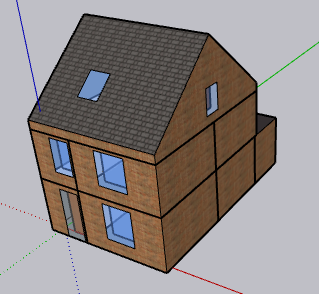
- You draw a model in SketchUp.
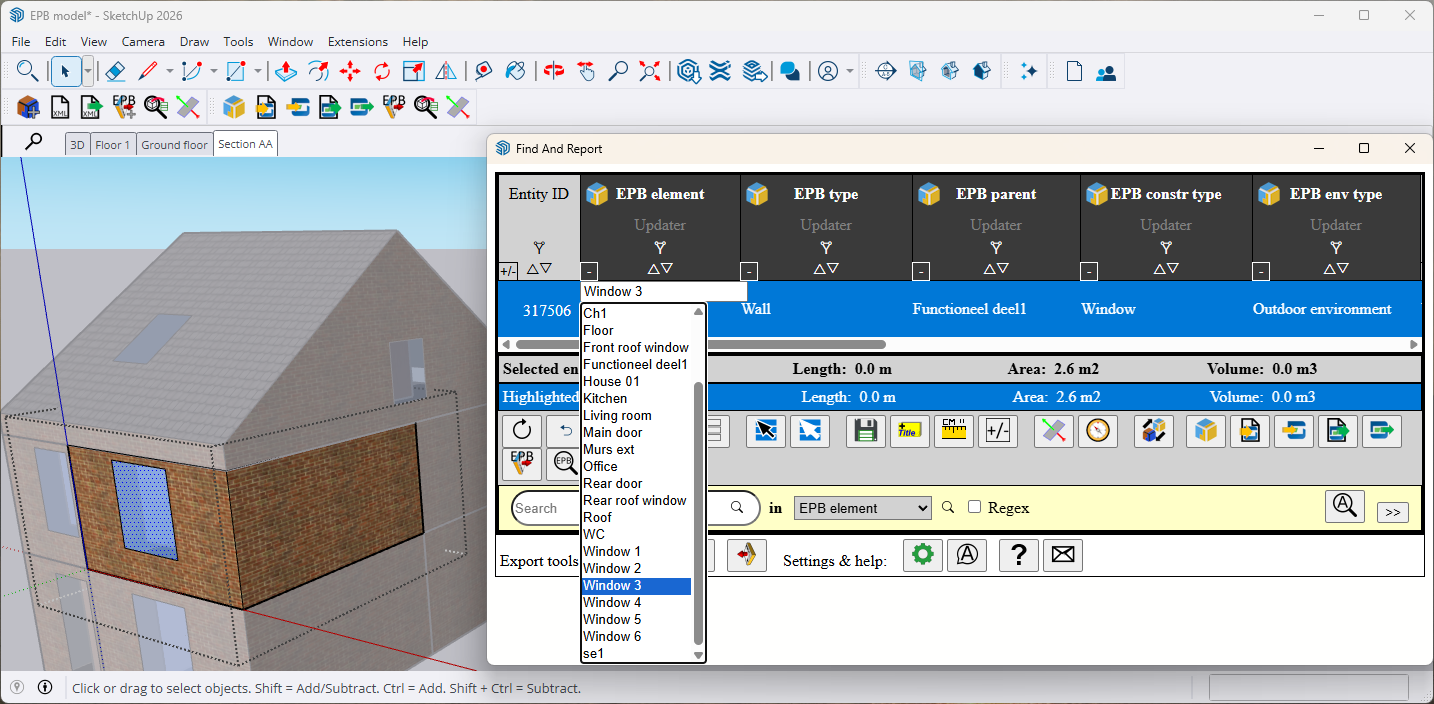
- You identify the EPB elements in the drawing with Find and Report.
- The surface, volume, orientation, slope information is imported into the EPB file.
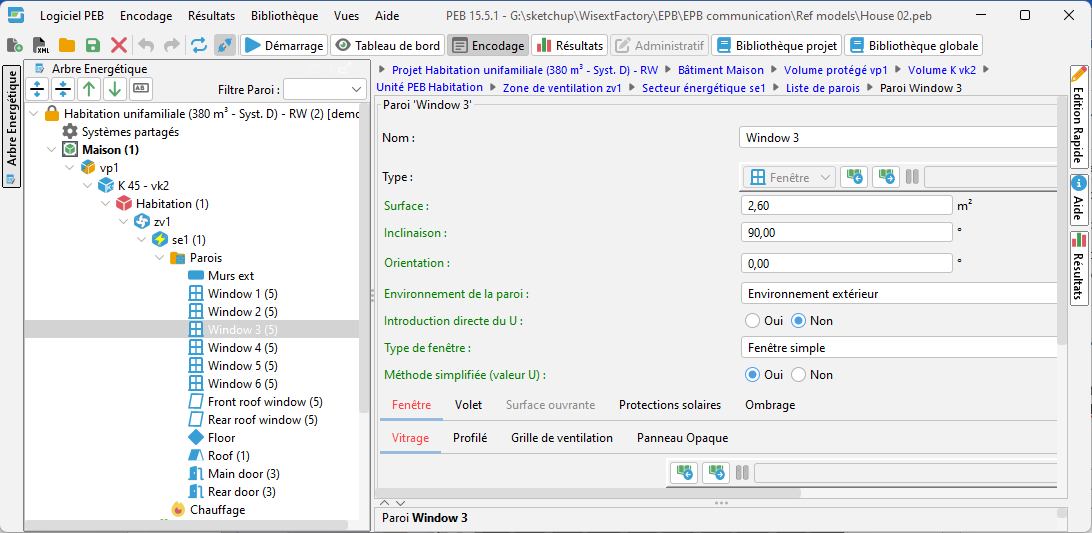
Two types of tools
Creator
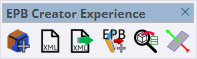
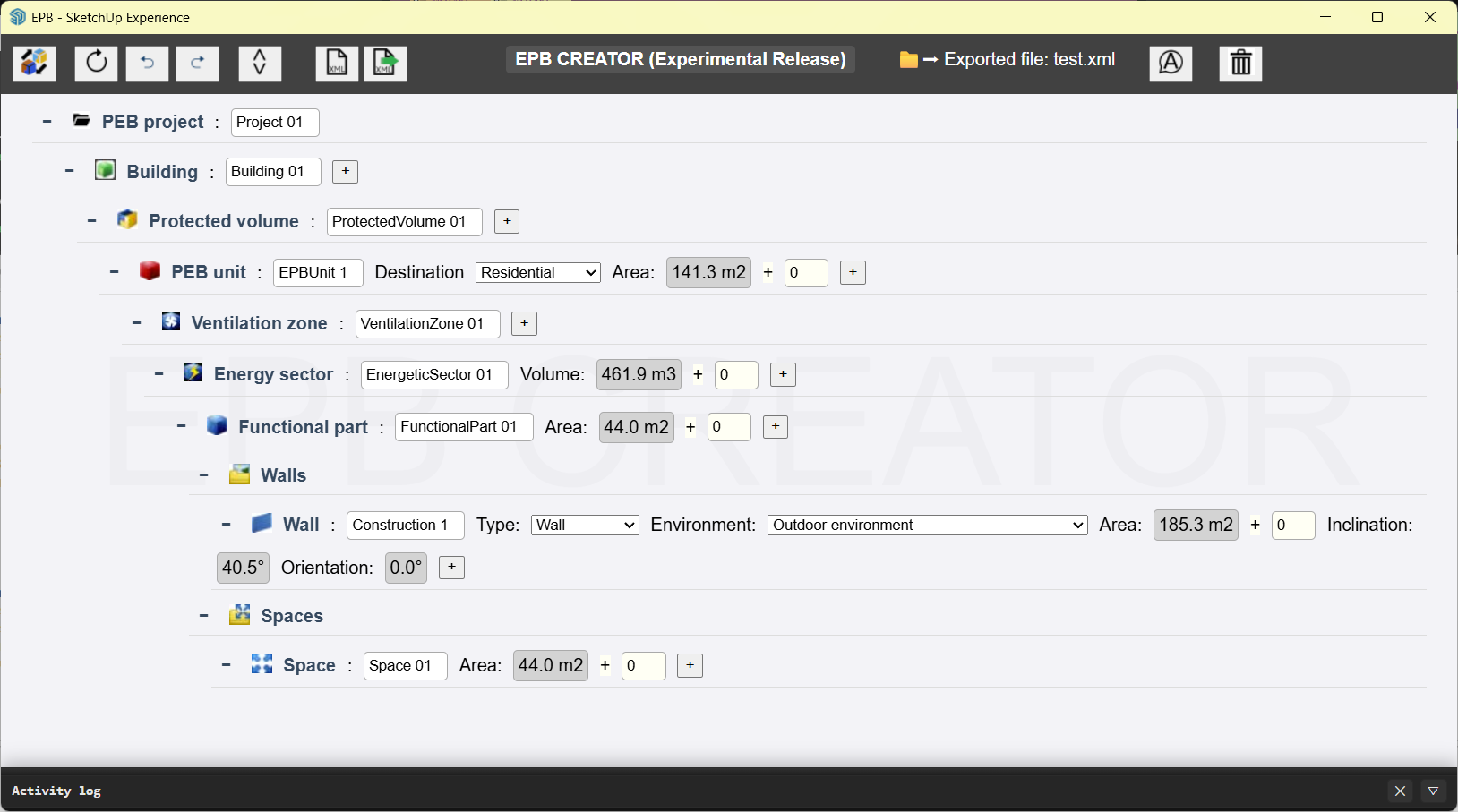
You create the EPB elements in SketchUp and then import them into the EPB software, in 4 steps:
- Create EPB elements in SketchUp: define their name, type and environment.
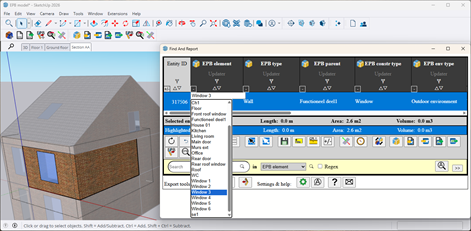
- Link the entities of SketchUp with these EPB elements.
- Create an XML file containing the information about the EPB elements.

- Import into the EPB software.

Note
- Official method proposed by the software designers for interacting with an external software.
- Possibility to define the names of the elements, their type and their environment in SketchUp.
- Once imported into the EPB software, you must complete the data of the elements, such as the wall composition.
Updater
You work traditionally in the EPB software and pull the geometric information from SketchUp in 3 steps:
- 1. Import elements from an EPB software file into SketchUp.

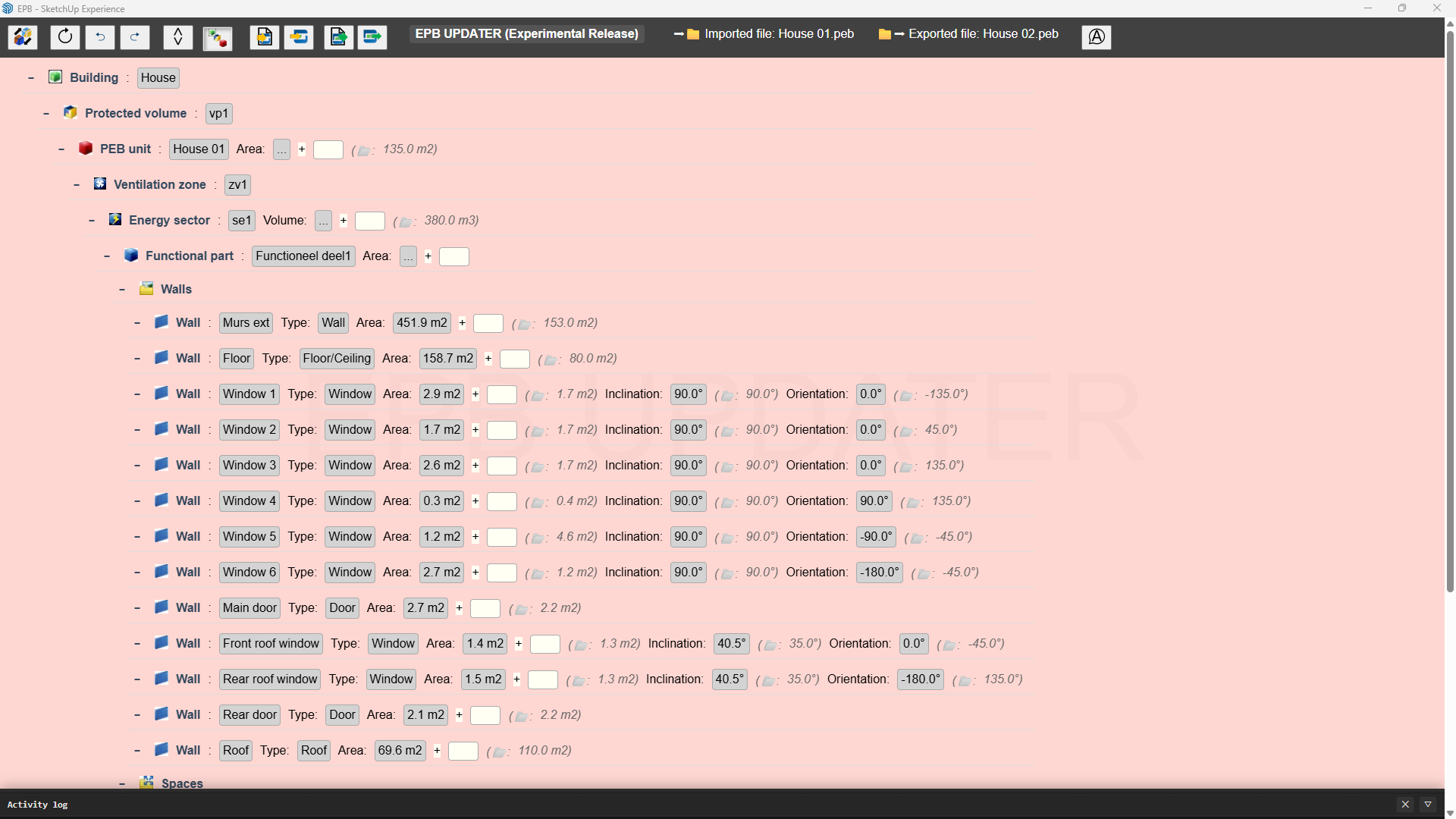
- 2. Link the entities of SketchUp with those of the EPB software.
- 3. Export to the EPB file the data of surface, volume, orientation and slope.
Note
- This method allows you to work mainly in the EPB software, keeping its libraries: only the geometry is retrieved from SketchUp.
- Unofficial method that reads and modifies files: never overwrite your existing files and always check the new file created.
How to test?
Install the latest version
You must first install the Wisext tools.
Open the window “ About Wisext tools ” (Extension menu / Find And Report).
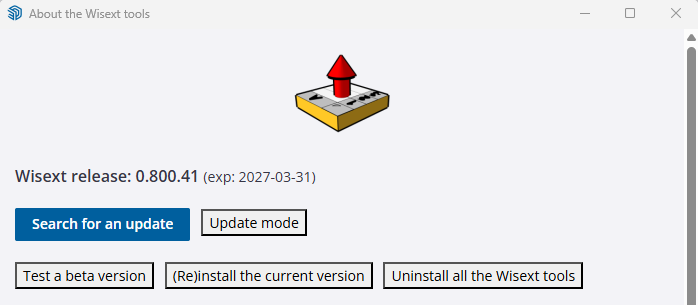
Check that you have the latest version of the Wisext Tools (at least version 0.800.4). Press “Check for updates” and “Test a beta version” to get the latest version.
Enable the EPB – EPB Belgium tools (button: "Enable or disable tools").
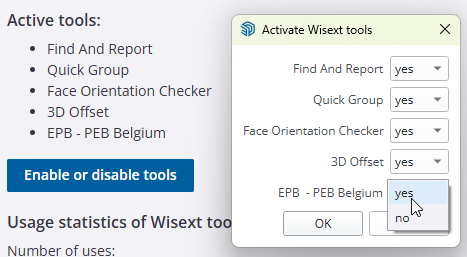
Restart SketchUp to apply the changes.
Open the tools
Take a model you know and that, if possible, was used for an EPB file.
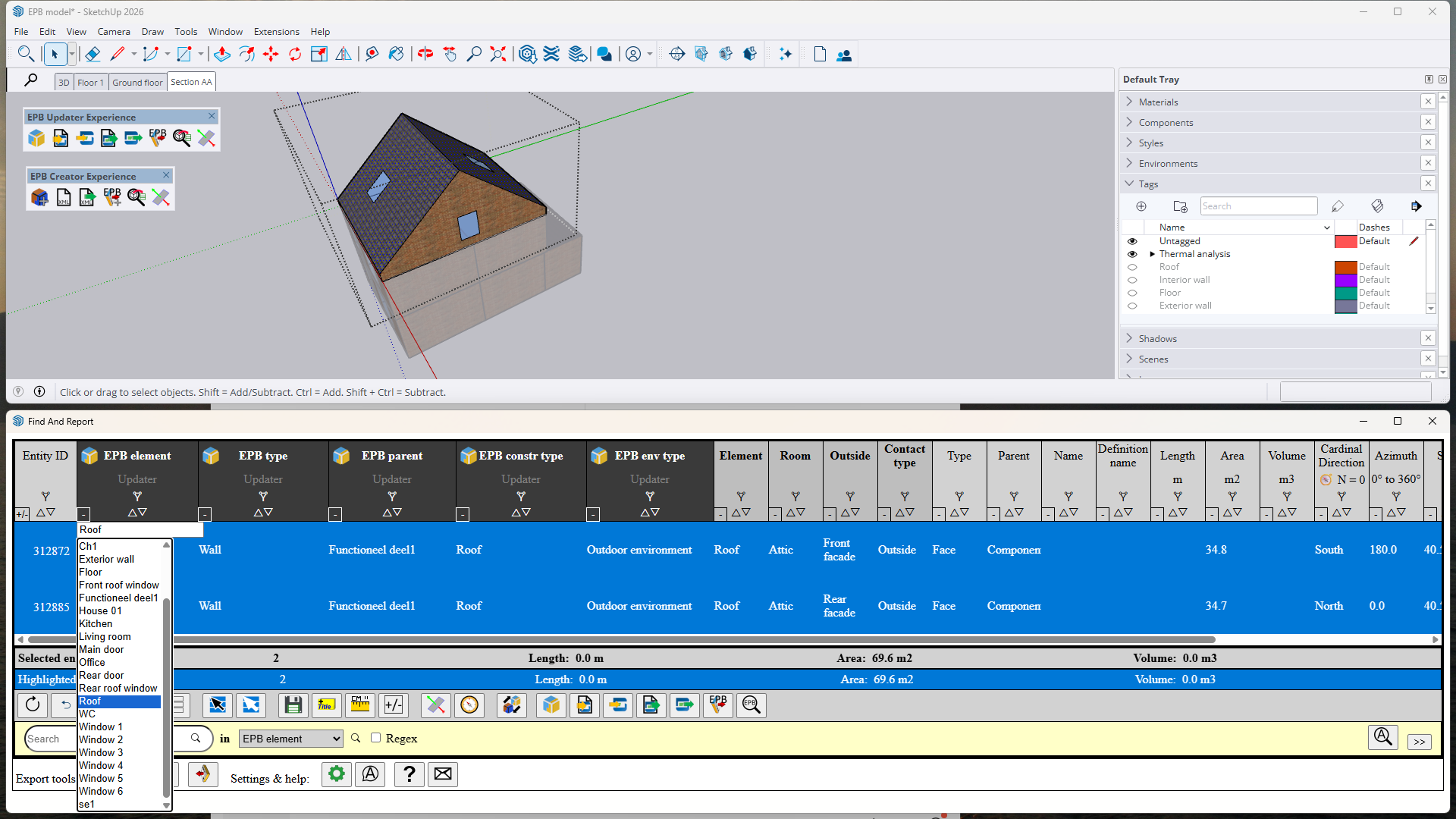
Open SketchUp, the Find And Report window and one of the EPB Updater or Creator windows simultaneously.
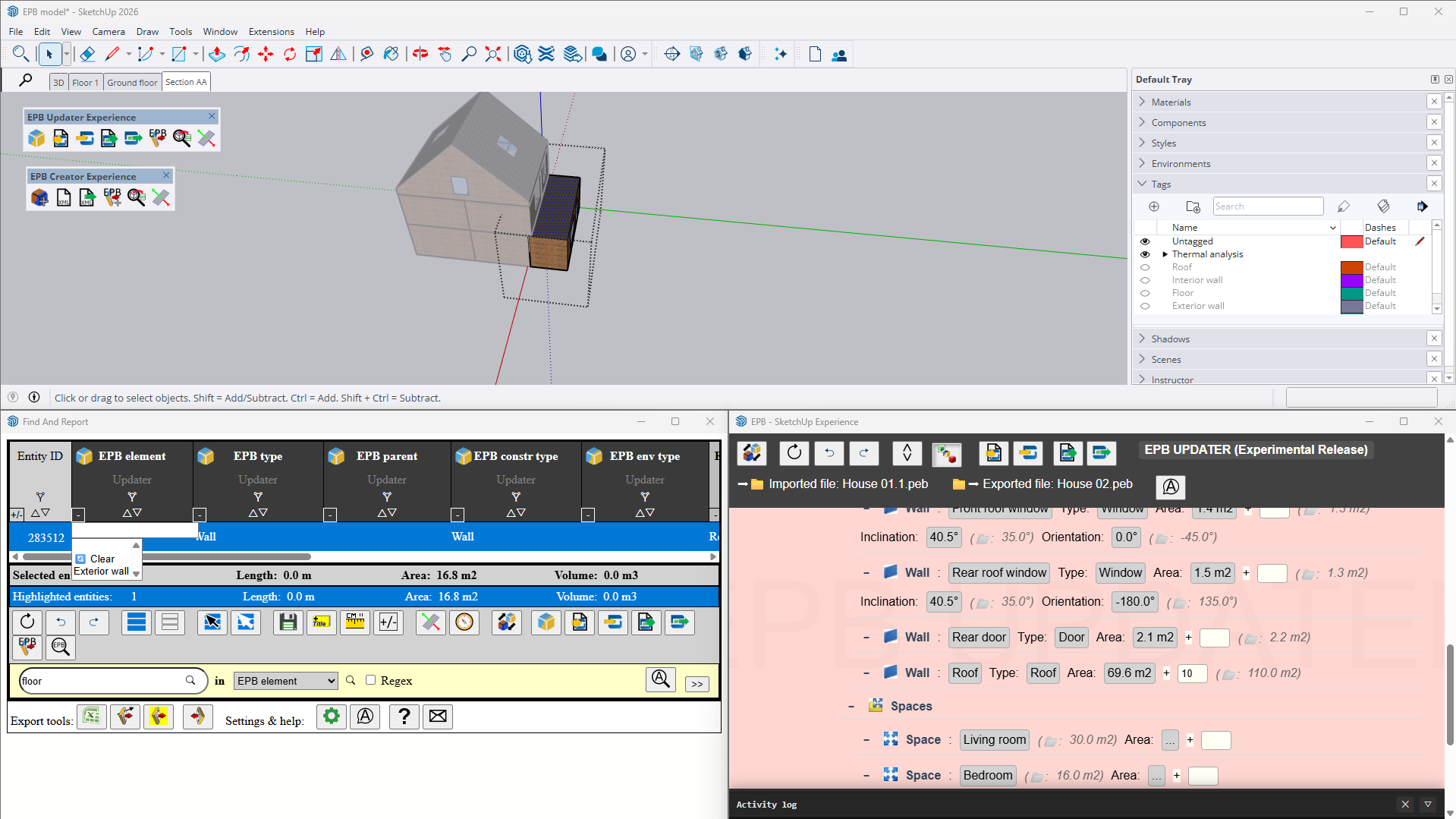
Test the tools
EPB Updater
- With EPB Updater, read the EPB file.

- Link the EPB elements with the SketchUp entities.

- Export the data into a new EPB file, which you will then open in the EPB software:

EPB Creator
- Add EPB elements by clicking on:
 Rename them to identify them and specify the type and environment.
- Link the EPB elements with the SketchUp entities:
- Export the data into the XML file:

- Import the XML file into the EPB software:

Send your comments
Feel free to report bugs or write your comments by clicking on the contact button: 
Useful commands
Switching modes
You can switch from Creator to Updater and vice versa at any moment by pressing the button: 
EPB Updater: display elements by type
The reading of complex EPB files can lead to an incoherent hierarchical structure. You can switch to sorting by type by pressing the button: 
Selection filter
When no element is selected, the 4 EPB columns in Find And Report act as filters on the list of EPB elements.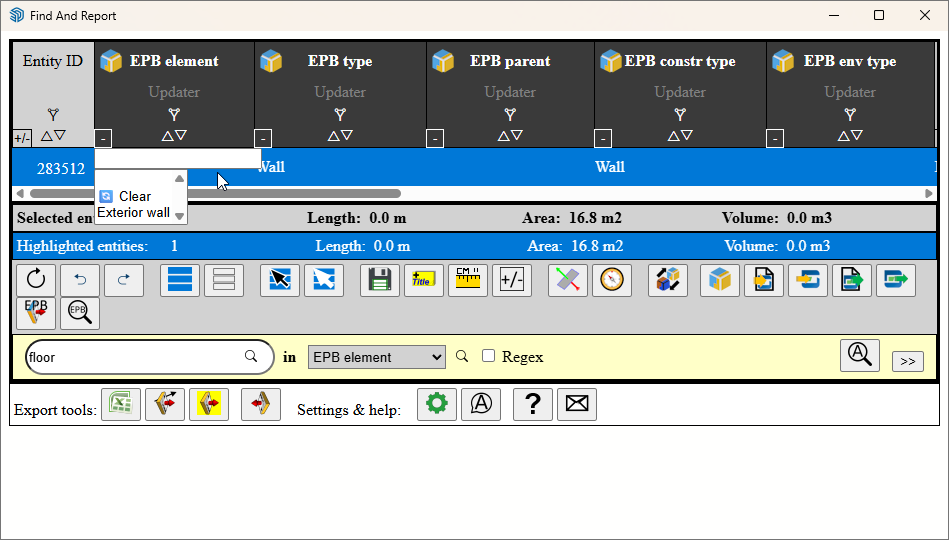
One SketchUp entity for several EPB elements
You can assign several EPB elements to a SketchUp entity by holding CTRL while selecting elements in the dropdown menu.
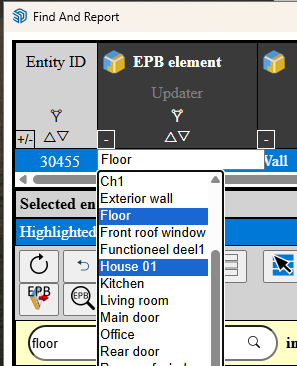
Find the SketchUp entities that provide the measurement
Click on the measured quantity to select the SketchUp entities that are the source of this value.
Manually adjust the value of a measurement
The yellow rectangle to the right of the measured quantity allows you to manually add or subtract a quantity (use a negative value to subtract).

Language choice

You can define the language used for the Wisext EPB tools independently from that of the Wisext tools. The choice has no impact on exporting to the EPB software.
