How to activate your licences on a workstation?
Your Licences grant access to specific features of the Wisext tools. Your licences are linked to your member account.
Here are the steps to activate your licences in SketchUp on your workstation.
1. Create a member account on this site.
To activate a licence, you need a member account. If you don't yet have one, you can create it here.
2. Ensure you have the licences.
You can check it here after logging in.
3. Launch the registration window in SketchUp.
Open SketchUp and click the “Register Wisext Tools” button in the “Find And Report” toolbar.
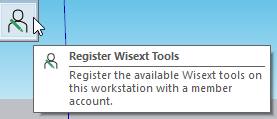
If this button does not appear, go to the “ About Wisext Tools ” menu under Extensions / Find And Report (or any other Wisext tool). There, you will find a “Register” button. This is where you can change the account linked to the workstation if it was registered with another account.
4. Sign in to your account in the registration window.
A window connected to the wisext.com website should appear, prompting you to sign in to an existing account.
5. Register the workstation.
Once signed in, you will arrive at a pre-filled form (close and reopen the window as explained above if the form does not appear).
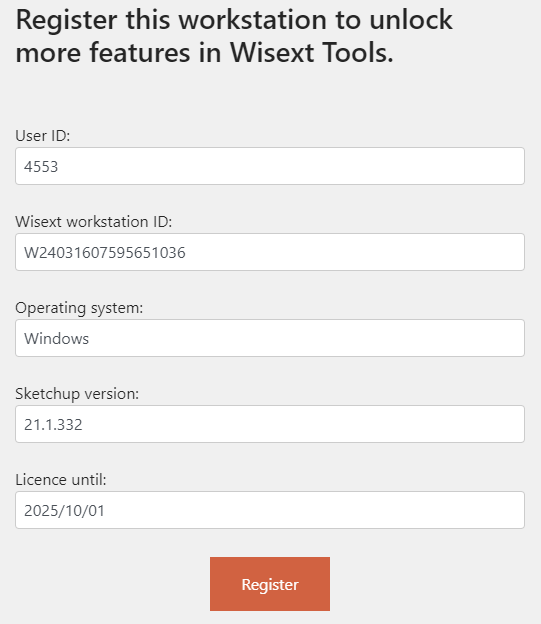
If the reCAPTCHA appears, tick the box and click “Register”.
The next page should confirm that the workstation has been registered with your account.
6. Close the window and restart SketchUp.
You should now have access to the features linked to your licences.
⚙ If activation does not occur, go to the “About Wisext Tools” menu under Extensions / Find And Report and click the Update licence data button.
🔂 If activation still fails, repeat the full procedure described above.
👉 If the issue persists, contact Wisext and describe the issue you're encountering. We will work together to find a solution.
⚠️Registering a workstation may deactivate a licence on another workstation if you exceed the number of stations permitted by your licence.
